
Windows 11 Wi-Fi Repair: AI & Video Diagnostics Guide
Windows 11 Wi-Fi adapter missing, networks not showing, internet dropping constantly, or running painfully slow? This page helps you fix common Windows 11 network issues — including CMD Winsock resets, DNS flushing, WLAN AutoConfig service toggles, and Device Manager driver steps — using interactive AI diagnostics paired with targeted video tutorials. Need help with a specific PC model, wireless card, or router? Ask the AI assistant during your chat session for custom hardware advice! More FAQs
Describe your issue below to get matched with the best repair video.
- No WiFi networks found / networks not appearing
- WiFi adapter missing or not detected
- Slow WiFi / poor internet speeds
- WiFi keeps disconnecting randomly
- WiFi not showing in Settings at all
These are the videos our AI matches you to during your chat session below — describe your problem and it'll pick the right one and answer your questions as you go. You can also browse them here first.
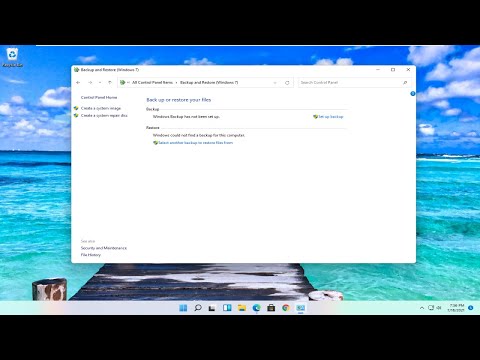
How to FIX No WiFi Networks Found on Windows 11 PC
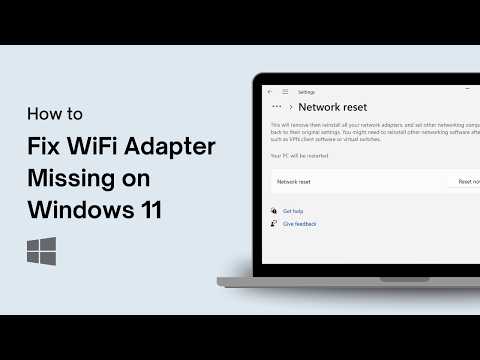
How To Fix WiFi Adapter Missing on Windows 11
How To Fix Slow Internet Speed In Windows 11
How to Fix WiFi Keeps Disconnecting in Windows 11 | Unstable Wi-Fi Connection
Fix WiFi Not Showing in Settings on Windows
FAQ: Windows 11 Wi-Fi & Internet Troubleshooting
❓ What does this Windows 11 Wi-Fi diagnostic page do?
This page provides an interactive AI troubleshooting tool for Windows 11 wireless network problems — missing Wi-Fi toggles, undetected network adapters, slow speeds, frequent disconnects, and empty network lists. It matches your symptoms with verified video repair solutions.
🤖 How does the AI choose the right fix?
The diagnostic tool asks simple questions about what your PC is doing — like showing no available networks, dropping off Wi-Fi randomly, or missing the Wi-Fi icon completely. Based on your responses, it isolates the software or driver conflict and matches you directly with the step-by-step repair video.
🏷️ Can I ask the AI about my specific PC brand or Wi-Fi card?
Yes! While the video guides cover standard Windows 11 system commands and Control Panel settings, you can ask the AI assistant for advice on specific laptop brands (Dell, HP, Lenovo, ASUS, Acer) or Wi-Fi chipsets (Intel Wi-Fi 6, Realtek, MediaTek) during your chat.
🛠️ What problems can this diagnostic help with?
The tool covers running CMD reset commands (ipconfig, flushdns, netsh winsock reset), enabling disabled network adapters, restarting the WLAN AutoConfig service, performing network resets, and updating network drivers.
🎥 Does this page include real repair videos?
Yes. Every main Windows 11 Wi-Fi issue includes a complete step-by-step video walkthrough embedded on the page, linked automatically when your symptom is selected.
👀 Can I browse the videos without using the AI?
Yes. All network repair videos are displayed in an accessible grid on the page so you can select and view any guide directly.
🧭 What computers and hardware does this cover?
The software fixes apply to any desktop or laptop running Windows 11, regardless of processor type or laptop brand.
⚠️ What if my Wi-Fi adapter is completely missing from Settings?
This usually happens due to a driver crash, a fast-startup glitch, or a stopped service. The diagnostic guides you through checking Device Manager, restarting the WLAN AutoConfig service, or running netsh reset commands to force Windows 11 to re-detect the hardware.
🌱 Is this safe for non-technical users?
Yes. All command-prompt steps and Windows settings changes are demonstrated clearly on video before you perform them. You don’t need advanced computer skills to execute the basic fixes.
🔧 Do I need special tools to fix Windows 11 Wi-Fi?
No extra physical tools are required. Most fixes rely purely on built-in Windows 11 utilities like Command Prompt (CMD), Control Panel, Device Manager, and Network Settings.
🔁 What if my Wi-Fi still doesn’t work after trying these steps?
If the software and driver resets do not resolve the problem, verify that your router/modem is working properly, test with a simple USB Wi-Fi dongle, or start a new diagnostic session using the Reset Session link.